ChatBack User Manual
Comprehensive guide to installing, configuring, and maximizing your local AI chat archive.
1. Getting Started
System Requirements
- Operating System: Windows 10 or 11 (64-bit)
- Internet connection (required for connecting to Gemini)
- A Google account with access to Gemini conversations
- No programming tools or technical knowledge required
Installation
- Download ChatBack from schlaben.com/chatback
- Run the installer (
ChatBack_Setup.exe) — follow the on-screen instructions - Launch ChatBack from the Start Menu or desktop shortcut
- Your default browser opens to the ChatBack interface at
http://localhost:5199
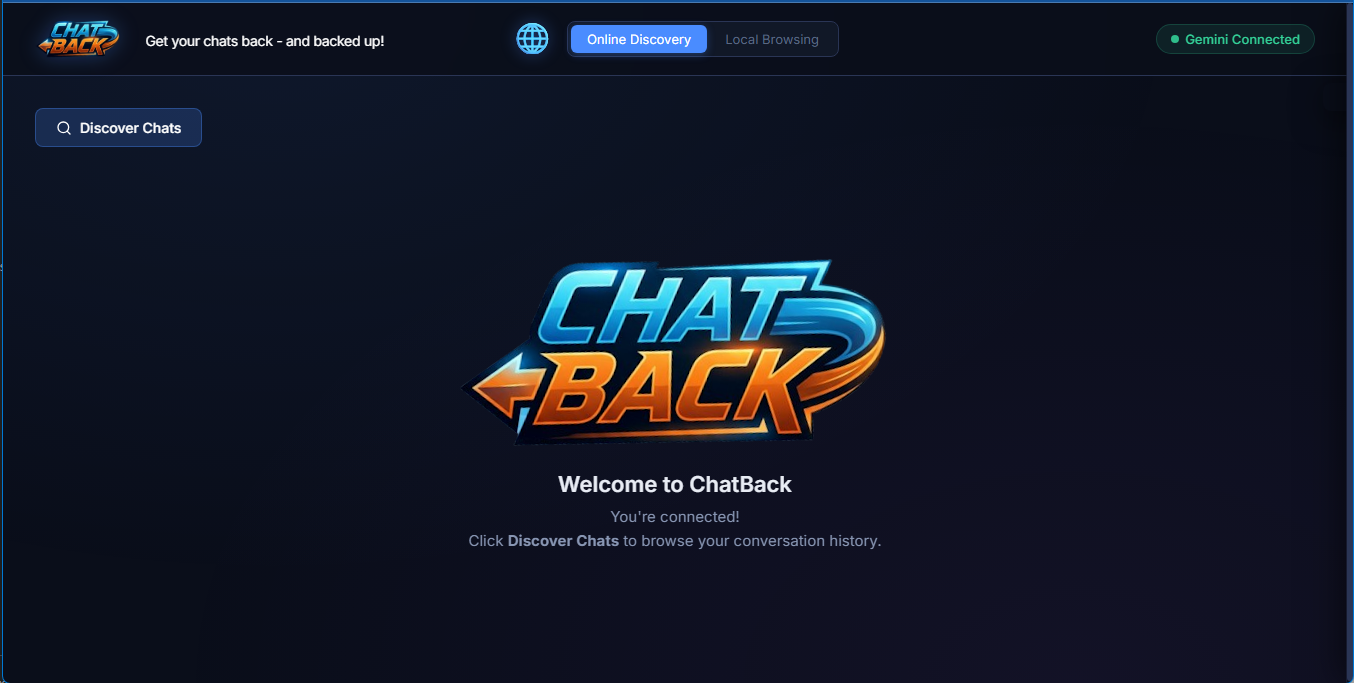
ChatBack is a self-contained application. It includes its own Chromium browser engine — it does not use or affect your system Chrome installation.
Windows SmartScreen Warning
On first launch, Windows may show a SmartScreen warning: “Windows protected your PC.”
This is normal for newly released software. ChatBack is digitally signed with a verified Organization Validation code-signing certificate from Certum CA, but new executables need time to build Microsoft’s SmartScreen reputation score.
- Click “More info” on the blue SmartScreen prompt
- Verify the publisher is verified
- Click “Run anyway”
After the first run, SmartScreen will remember your choice.
First Run — What to Expect
On your very first launch:
-
Legal Disclaimer — A one-time disclaimer appears explaining what ChatBack does, your data safety, and your legal rights. Click ”✅ I Understand & Accept” to proceed.
-
Connect Your Google Account — Since this is your first run, ChatBack needs access to your Gemini conversations:
- Click the ”🔑 Connect Google Account” button
- A real Chromium browser window opens to Google’s own login page
- Sign in with your Google account as you normally would
- Complete two-factor authentication (2FA) if prompted
- Accept any cookie/GDPR consent popups
- Once you can see your Gemini conversations, switch back to ChatBack
- Click ”✅ I’ve finished signing in”
-
Session Saved — The header badge turns green showing “Gemini Connected ✅”. Your login session is saved locally and will persist for weeks or months — across application restarts, machine reboots, and Windows updates. You won’t need to log in again until the session naturally expires.
Is this safe? Yes. You sign in directly on Google’s own login page. ChatBack never sees, intercepts, or stores your password. Your session cookies are saved in a local folder (.gemini-profile/) on your device and never transmitted anywhere.
2. Google Gemini — Platform Guide
ChatBack currently supports Google Gemini (gemini.google.com) as its extraction target.
How Authentication Works
ChatBack uses a persistent browser profile — the same technology your regular browser uses to remember that you’re logged into websites. When you sign in through ChatBack’s login window:
- Your session cookies are saved locally in
.gemini-profile/ - These cookies are used by ChatBack’s background browser to access your Gemini conversations
- ChatBack never handles, stores, or transmits your actual password
- The session persists across restarts — you log in once
Session Lifecycle
| Event | What Happens |
|---|---|
| First launch | You sign in via Google’s login page |
| Subsequent launches | Session is automatically reused — no login needed |
| Session expires (weeks/months later) | Header badge shows “Not Connected” → click ”🔑 Reconnect” |
| After reconnecting | New session is saved, everything continues normally |
Cookie Consent & GDPR Popups
ChatBack automatically handles Google’s GDPR cookie consent dialogs when they appear during login. If a consent popup is detected, it’s auto-accepted so you can proceed to sign-in without friction.
What ChatBack Extracts
ChatBack scrolls through your Gemini conversations in a real browser, reading the visible content — exactly as you would manually. It captures:
- ✅ Complete message text (User and Gemini responses)
- ✅ Code blocks with language tags
- ✅ Tables (GitHub Flavored Markdown format)
- ✅ Bold, italic, inline code, and links
- ✅ LaTeX math expressions (inline and display)
- ✅ Ordered and unordered lists
- ✅ Images — downloaded at original quality via Google’s CDN
- ✅ Conversation metadata (title, URL, message count, extraction timestamp)
The Lazy-Loading Challenge
Gemini uses aggressive lazy loading — when you open a long conversation, only the most recent ~50 messages are visible. Older messages are loaded incrementally as you scroll up.
ChatBack defeats this with an automated scrolling algorithm that mimics human scroll behavior, progressively loading the entire conversation history before extracting. For very long conversations (500+ messages), this process can take 7–16 minutes depending on the extraction speed mode.
3. Usage & Features
Discovering Your Conversations
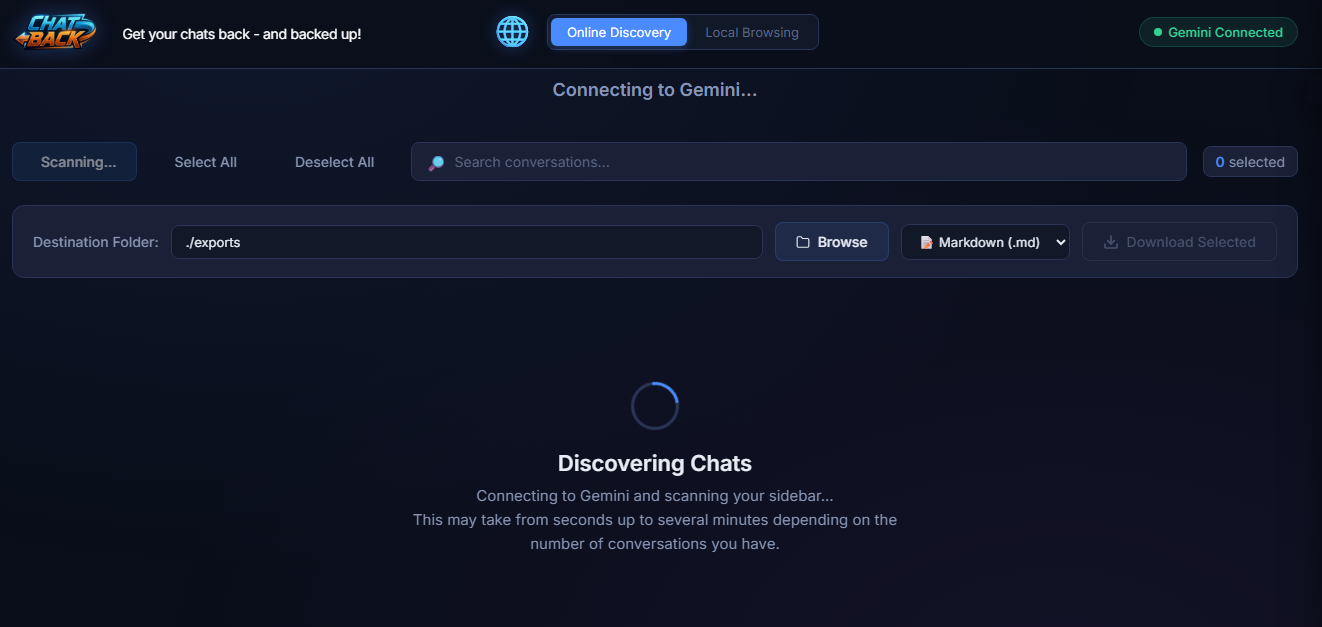
- Click ”🔍 Discover Chats” on the welcome screen
- ChatBack opens Gemini in the background and scans your sidebar
- Conversations appear progressively as they’re found — a live counter shows progress
- When complete, all your conversations are displayed as cards in a searchable grid
Selecting & Exporting
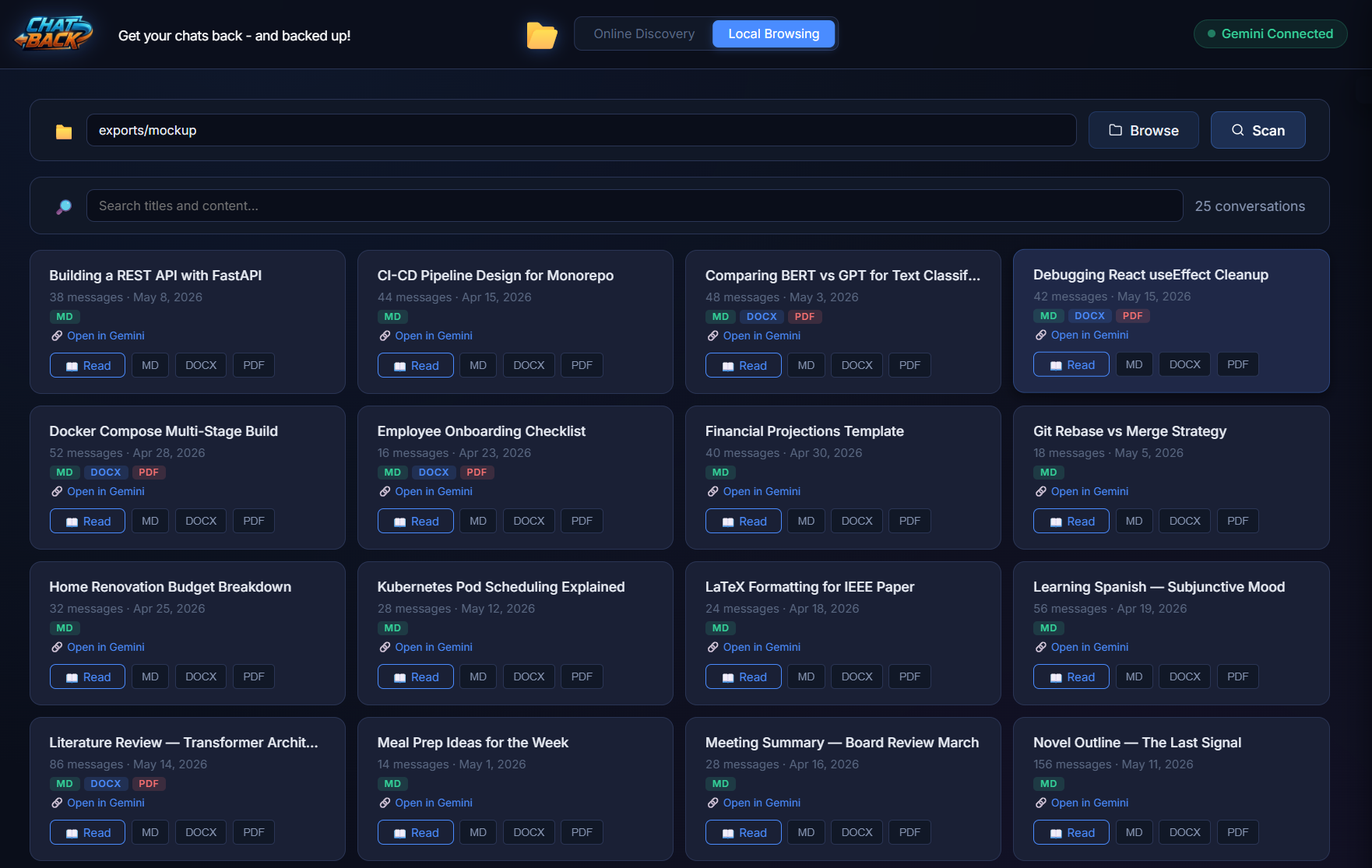
- Select conversations by clicking individual cards, or use “Select All” / “Deselect All”
- Choose a format from the dropdown:
- 📝 Markdown (.md) — Lightweight text with YAML metadata header
- 📄 Word (.docx) — Styled document with headings and code blocks
- 📕 PDF (.pdf) — Professional A4 layout, ready to print
- Set destination folder — type a path or click “Browse”
- Click ”📥 Download Selected” — ChatBack extracts and saves each conversation
Export Format Details
Markdown (.md)
Each file includes a YAML frontmatter header with metadata:
---
title: "Literature Review — Transformer Architectures"
url: "https://gemini.google.com/app/abc123..."
extracted_at: "2026-05-14T10:30:00.0000000Z"
message_count: 86
---
Followed by alternating ## 👤 User and ## 🤖 Gemini sections with full formatting:
- Code blocks with language tags (
python,javascript, etc.) - LaTeX math: inline
$E=mc^2$and display$$\int_0^\infty f(x)dx$$ - GFM-format tables with proper column alignment
- Images relinked to locally downloaded files in a
_assets/subdirectory
Word (.docx)
Styled documents with:
- Proper heading hierarchy
- Monospace code blocks
- Bold/italic formatting
- Generated via Microsoft’s Open XML SDK
PDF (.pdf)
Professional A4 layout rendered via Chromium’s print engine, with:
- KaTeX-rendered math equations
- Syntax-highlighted code blocks
- Proper page breaks
Offline Browsing & Search
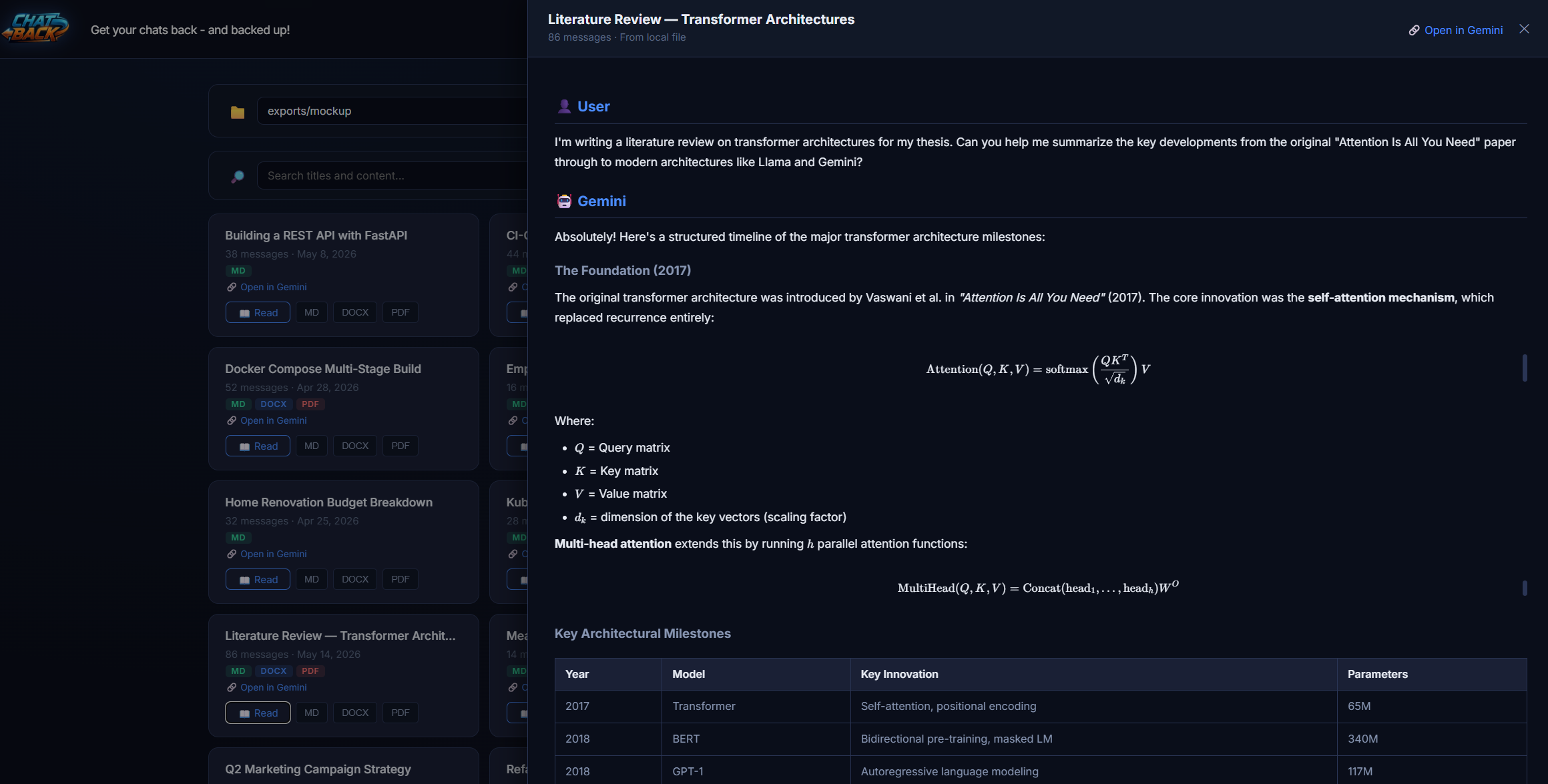
Switch to the ”📂 Local Browsing” tab to browse and search previously exported conversations — no internet connection required.
Features:
- Full-text search across all conversation titles and content
- In-browser reader panel with rendered markdown (tables, math, code blocks)
- Quick-access buttons: Read, re-export to MD/DOCX/PDF
- “Open in Gemini” link to view the original conversation online
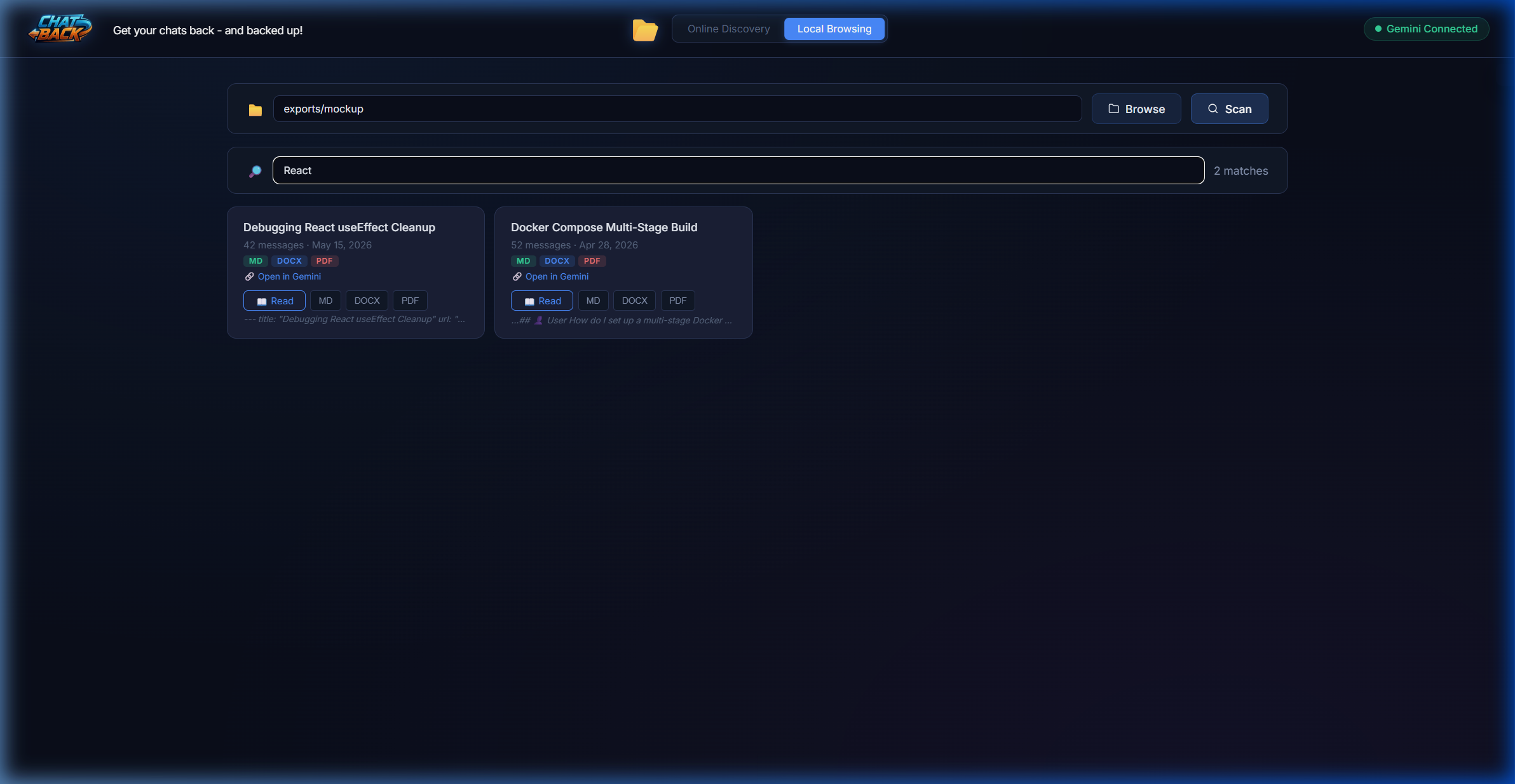
Image Handling
ChatBack automatically downloads images from your conversations:
- AI-generated images (charts, diagrams, visualizations)
- User-uploaded screenshots and photos
- All images downloaded at maximum original quality using Google’s CDN
- Images are saved to a
_assets/subdirectory next to the exported file - Deduplication: Identical images (by MD5 hash) are saved once — all references point to the same file
- If an image download fails, the original URL is preserved so you can retrieve it manually
CLI Mode
For scripted or automated batch extraction, ChatBack includes a command-line interface:
ChatBack.exe --urls urls.txt --output D:\Archive\GeminiCreate a text file with one Gemini URL per line:
# Research conversations
https://gemini.google.com/app/abc123def456
https://gemini.google.com/app/xyz789ghi012
The CLI supports the same speed modes and format options as the Web UI.
4. Where Your Data Lives
ChatBack stores everything locally on your machine. There is no cloud, no database, and no external server.
| Data | Location | Purpose |
|---|---|---|
| Exported conversations | Folder you choose (default: ./exports) | Your archived conversations as .md, .docx, or .pdf files |
| Downloaded images | <export_folder>/<conversation>_assets/ | Images from your conversations at original quality |
| Browser session | .gemini-profile/ (next to ChatBack.exe) | Saved Google login session — cookies only, no passwords |
| Selector config | selectors.json | CSS selectors for Gemini’s DOM — editable for compatibility fixes |
| License key | Cached locally after activation | Validated once online, then works offline |
File Structure Example
exports/
├── Literature_Review_—_Transformer_Architectures.md
├── Literature_Review_—_Transformer_Architectures_assets/
│   ├── image_1.png
│   └── image_2.jpg
├── Q2_Marketing_Campaign_Strategy.docx
├── Debugging_React_useEffect_Cleanup.pdf
└── ...
No database. ChatBack intentionally uses simple files that you can open, copy, email, or back up with any tool — no proprietary formats, no lock-in.
5. Privacy & Security
Zero Data Collection
ChatBack collects no data whatsoever:
- ❌ No analytics or telemetry
- ❌ No crash reports
- ❌ No usage tracking
- ❌ No IP address logging
- ❌ No device fingerprinting
The only external network call ChatBack makes (aside from connecting to Gemini) is a periodic license key validation to our licensing provider (LemonSqueezy). This transmits only the license key — no personal data.
Password Safety
ChatBack never sees your password. When you click “Connect Google Account”:
- A standard Chromium browser window opens to
accounts.google.com - You type your password directly into Google’s own login page
- Google authenticates you and sets session cookies in the browser
- ChatBack uses those cookies (not your password) for subsequent requests
- The cookies are stored locally in
.gemini-profile/— they never leave your device
This is the same mechanism your regular browser uses when you stay logged in to Gmail.
Local-Only Processing
All data processing happens on your machine:
- Conversation content is read from Gemini’s DOM in a local browser
- Markdown/DOCX/PDF conversion happens locally
- Images are downloaded directly from Google’s CDN to your disk
- No data passes through any intermediary server
Legal Basis
ChatBack enables you to exercise your right to data portability — enshrined in GDPR (EU), CCPA (California), and similar regulations worldwide. You are exporting your own personal data from a platform where you are an authenticated account holder.
ChatBack’s approach is analogous to using a browser extension to download your emails or social media archive. It automates what you could do manually: opening conversations, scrolling through them, and copying the text.
6. Troubleshooting & FAQ
”Windows SmartScreen blocked the app”
ChatBack is code-signed with a verified Certum CA certificate, but SmartScreen requires reputation build-up for new executables. Click “More info” → verify publisher → “Run anyway."
"Not Connected” — Even After Signing In
- Ensure you completed Google’s login fully (including 2FA)
- Make sure you clicked ”✅ I’ve finished signing in” after logging in
- If the problem persists, click ”🔑 Connect Google Account” and try again
No Conversations Found
- Verify you can see conversations at gemini.google.com in your normal browser
- If “Gemini Apps Activity” is disabled in your Google account settings, conversations may be automatically deleted after 72 hours
- Try clicking “Discover Chats” again — the sidebar scan may need a second attempt
Extraction Is Slow
This is normal for long conversations:
| Conversation Length | Approximate Time |
|---|---|
| 20–100 messages | 10–30 seconds |
| 200–500 messages | 3–7 minutes |
| 500+ messages | 7–16 minutes |
ChatBack must scroll through the entire conversation to defeat Gemini’s lazy loading. The platform loads only ~50 messages at a time, so long conversations require many scroll cycles.
Do not close ChatBack during extraction — the process is working even when it appears to pause.
”Extraction Failed” or Stalled
- Check that your session is still valid (header badge shows “Gemini Connected”)
- If the session expired mid-extraction, reconnect and try again
- Very rarely, Google may show a CAPTCHA — reconnect via the login flow to solve it
- If the issue persists, try restarting ChatBack
”Is My Password Safe?”
Yes, absolutely. ChatBack never sees, intercepts, stores, or transmits your password. You type it directly into Google’s own login page in a standard Chromium browser. Only session cookies (which expire naturally) are stored locally in .gemini-profile/. These cookies cannot be used to recover your password.
Can I Use ChatBack Offline?
Partially. You need an internet connection to:
- Connect to your Google account
- Discover and extract conversations from Gemini
But the Local Browsing tab works fully offline — you can browse, search, and read any conversations you’ve already exported, with no internet connection required.
Does ChatBack Work with ChatGPT or Claude?
Not currently. ChatBack v1 is built specifically for Google Gemini. Support for additional AI platforms is planned for future releases.
Will Google Ban My Account?
ChatBack automates a standard Chromium browser using your own authenticated session. It does not reverse-engineer APIs, bypass authentication, or access data you couldn’t see manually. This is equivalent to scrolling through your own conversations and copy-pasting the text — just automated. We recommend avoiding extremely rapid extraction of hundreds of conversations in quick succession.
7. Pricing
| Tier | Price | Includes |
|---|---|---|
| Demo | Free | Discover all chats, export 1 conversation (max 10 messages) |
| Pro License | $39.90 (one-time) | Unlimited conversations, unlimited messages, 1 year of updates |
| Launch Special | $19.95 (code: EARLYBIRD) | 50% off — limited time for early adopters |
| Update Renewal | $19.95/year | Continued compatibility updates and new features |
After your update period expires, ChatBack continues to work at whatever version you have installed. Renewal is optional — it ensures continued compatibility when Gemini changes its interface.